Preparing a vector for print
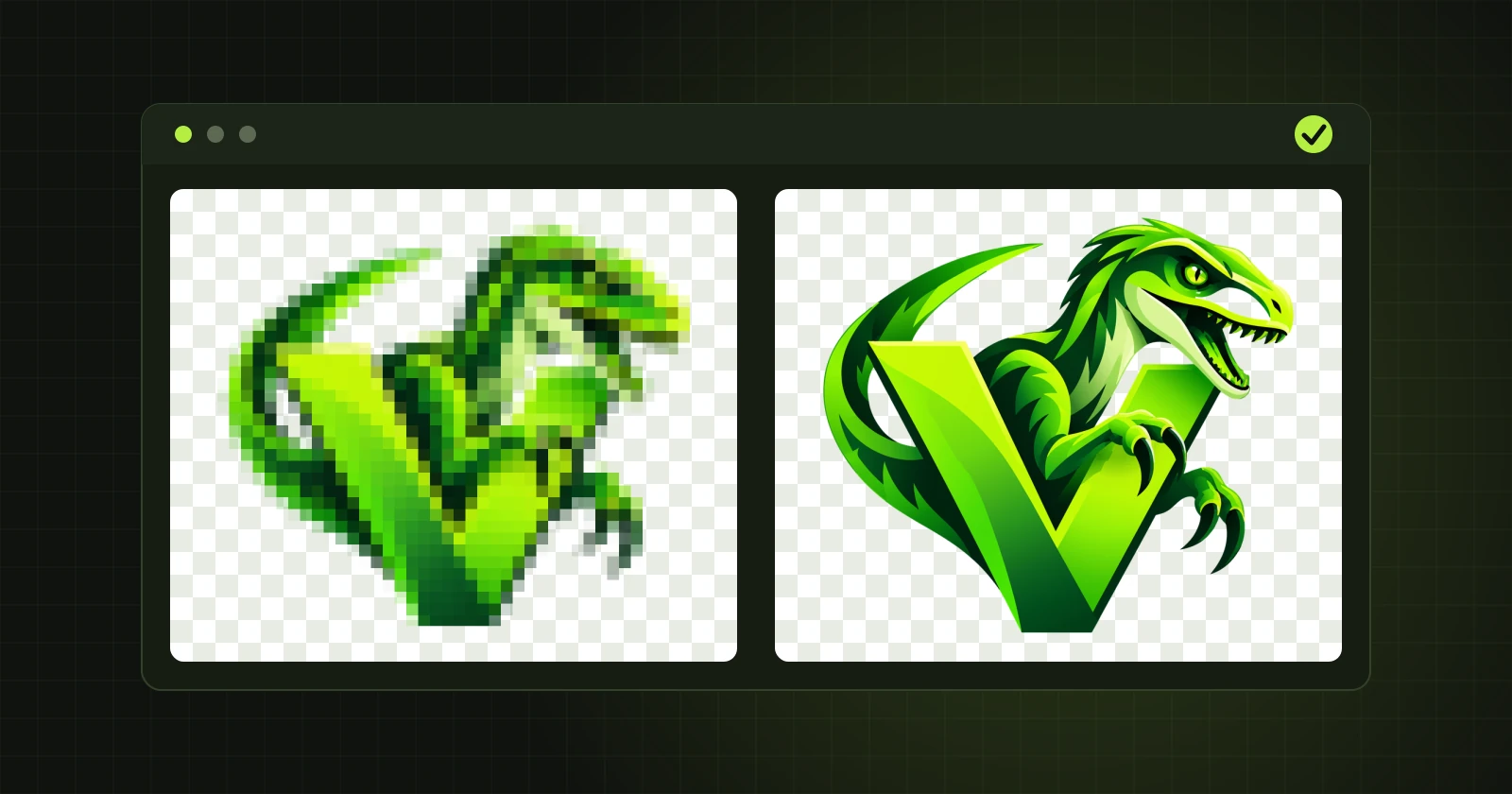
Printers ask for a vector file because it keeps sharp edges at any size, from a business card to a banner. A few things are worth checking before you send it.
1. Ask the printer about the format
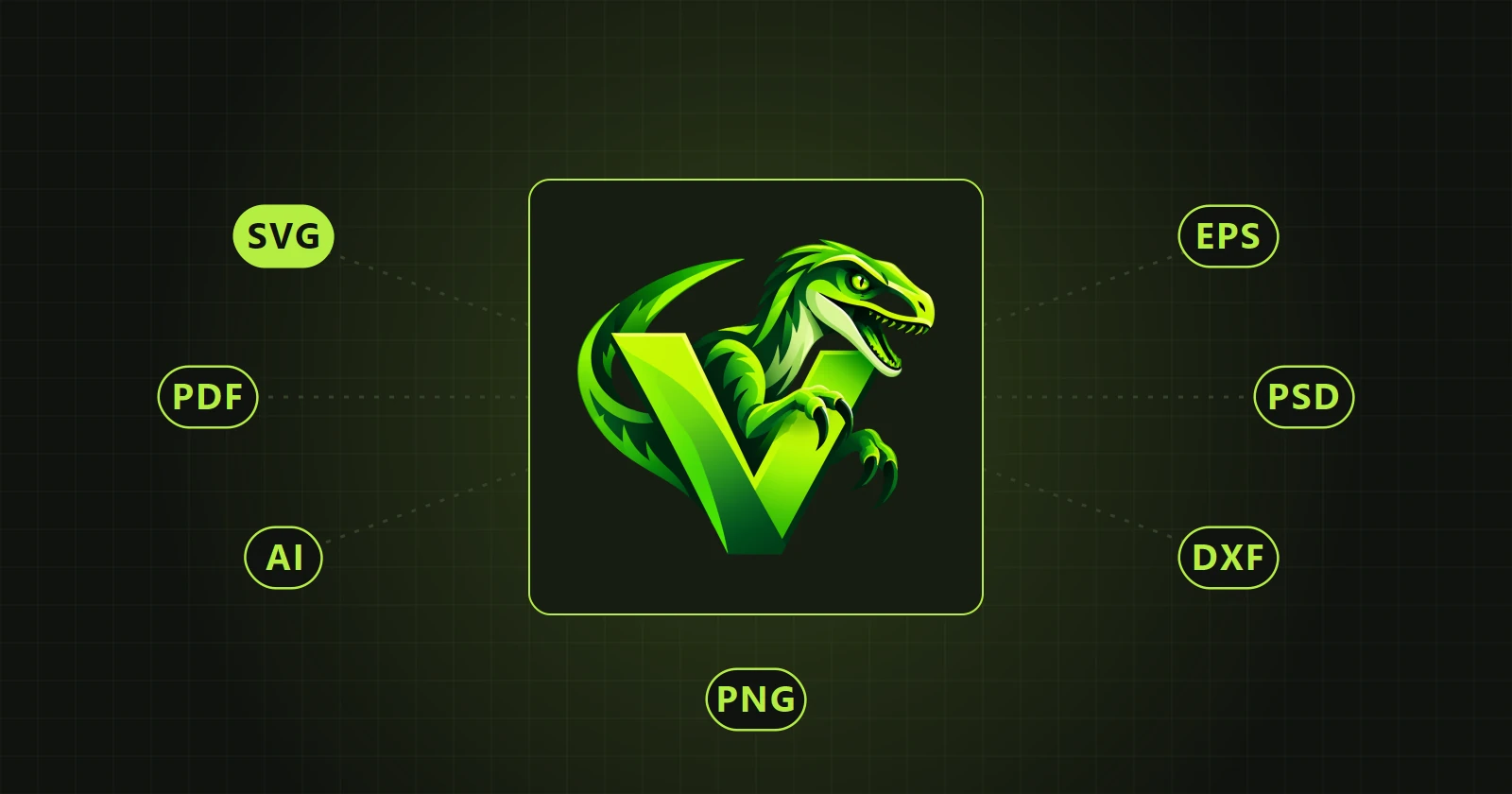
PDF is requested most often. Agencies working in Illustrator prefer AI. EPS is still required in some older workflows. VectorRaptor saves all three, and the AI file is prepared so that Illustrator opens it without trouble.
2. Size does not limit a vector
In the export dialog you give the longest side in pixels. For vector formats that is only the page size in the file. The shapes scale without loss, so the printer can enlarge the file freely.
3. Inspect the edges enlarged
A large-format print shows what a screen at 100% does not. Before exporting, zoom into letters, sharp tips and thin lines. An uneven boundary can be smoothed in the program: Fixing paths after vectorization.
4. Seams between shapes
When two shapes meet exactly edge to edge, some programs draw a thin light line between them. The option “Layer underlap” in the export dialog makes the lower shape reach slightly under its neighbour, and the line disappears. Recommended: shape “Bevel”, width “Auto”.
5. Gradients depend on the format
- PDF and AI keep gradients as vectors.
- EPS saves every object in one colour. If the artwork has colour transitions, choose PDF or AI.
6. Background
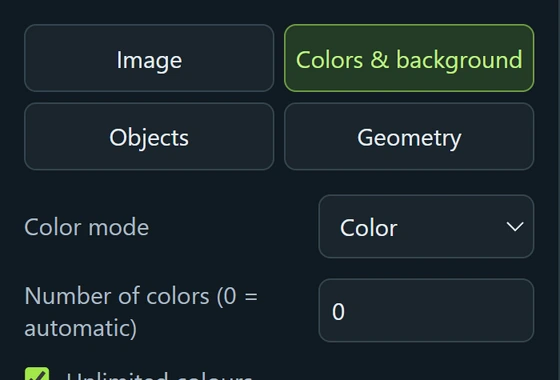
Printing on coloured material needs a transparent background. On the “Colors & background” tab keep “Preserve input transparency”, or choose “Remove border background” if the original has a plain background.
7. Colours
The program works in screen colours (RGB). Conversion to printing inks is done by the printer, or by you in a layout program. If the logo has brand colours defined in another system, give them to the printer separately.
A photo in large format
For printing a photograph at a large size there is a separate photo mode that saves SVG. It is described in Photo to vector.
 New in the next update