Fixing paths after vectorization
The automatic conversion does most of the work, but a few places usually need finishing by hand. Here are the most common corrections and the tools for them.
First, see the paths
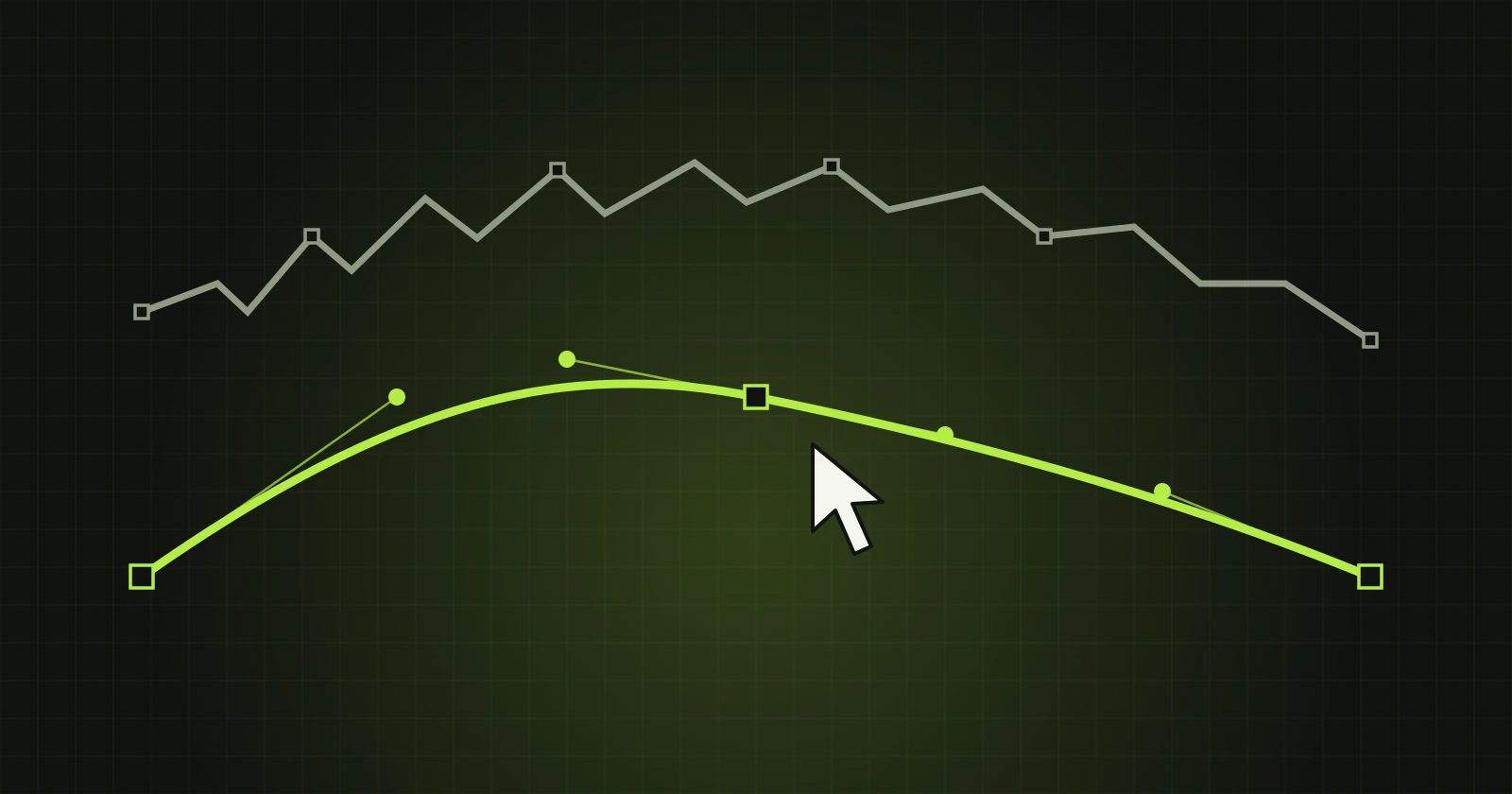
Switch on “Show paths” and “Show points” above the working area. The pink lines are shape boundaries, the squares are points. Change the view to “Vector result” and choose the “Path” tool (key P).
An important rule: the boundary is shared
In VectorRaptor the boundary between two shapes is one line belonging to both. When you move it, both shapes change together. No gaps or overlaps appear that would need patching afterwards.
A ragged boundary
Click the boundary and use “Smooth boundary”. The “Strength” slider decides how much. To smooth only a part, choose smoothing between two points from the right-click menu.
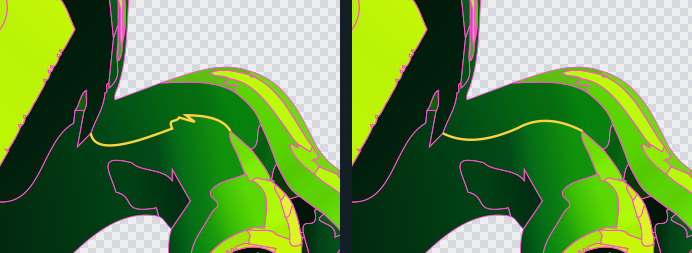
A point in the wrong place
Drag the point and the boundary follows. With Alt the point slides along the path, which helps when moving a corner. A right click on a boundary offers “Add a point here”, and on a point “Remove point”.
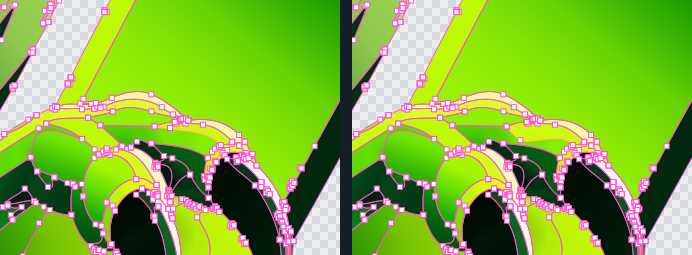
A boundary bent the wrong way
You can grab a selected boundary anywhere and drag it. The program makes sure it does not cross its neighbour. If it stops the move early, it says so in the status line.
Crumbs along the edges
Images with JPG compression leave small specks along edges. “Delete small shapes” removes every shape smaller than the area you give. Their neighbours take their place.
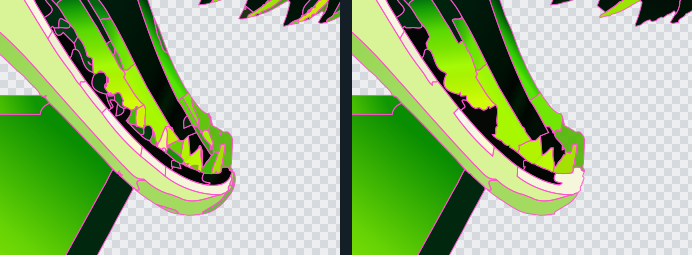
An unwanted or divided shape
- Delete shape - the shape disappears and a neighbour takes its place.
- Join with a neighbouring shape - two shapes become one object. With different colours a smooth transition forms between them.
- Clear (transparent) - the shape becomes transparent, for example to remove a background.
Undo
Every correction is one undo step (Ctrl+Z), so you can try things freely. Saving a .vrp project keeps all corrections, so you return to the work without converting again.
One limitation
With the option “Rigid silhouette outline” switched on, path editing is not available. If you plan manual corrections, leave it off.