SVG with paths or with an embedded image: how to check a file
The .svg extension does not guarantee a vector file. Some converters simply paste the original picture into an SVG file. Such a file blurs when enlarged exactly like a PNG.
Way 1: zoom in
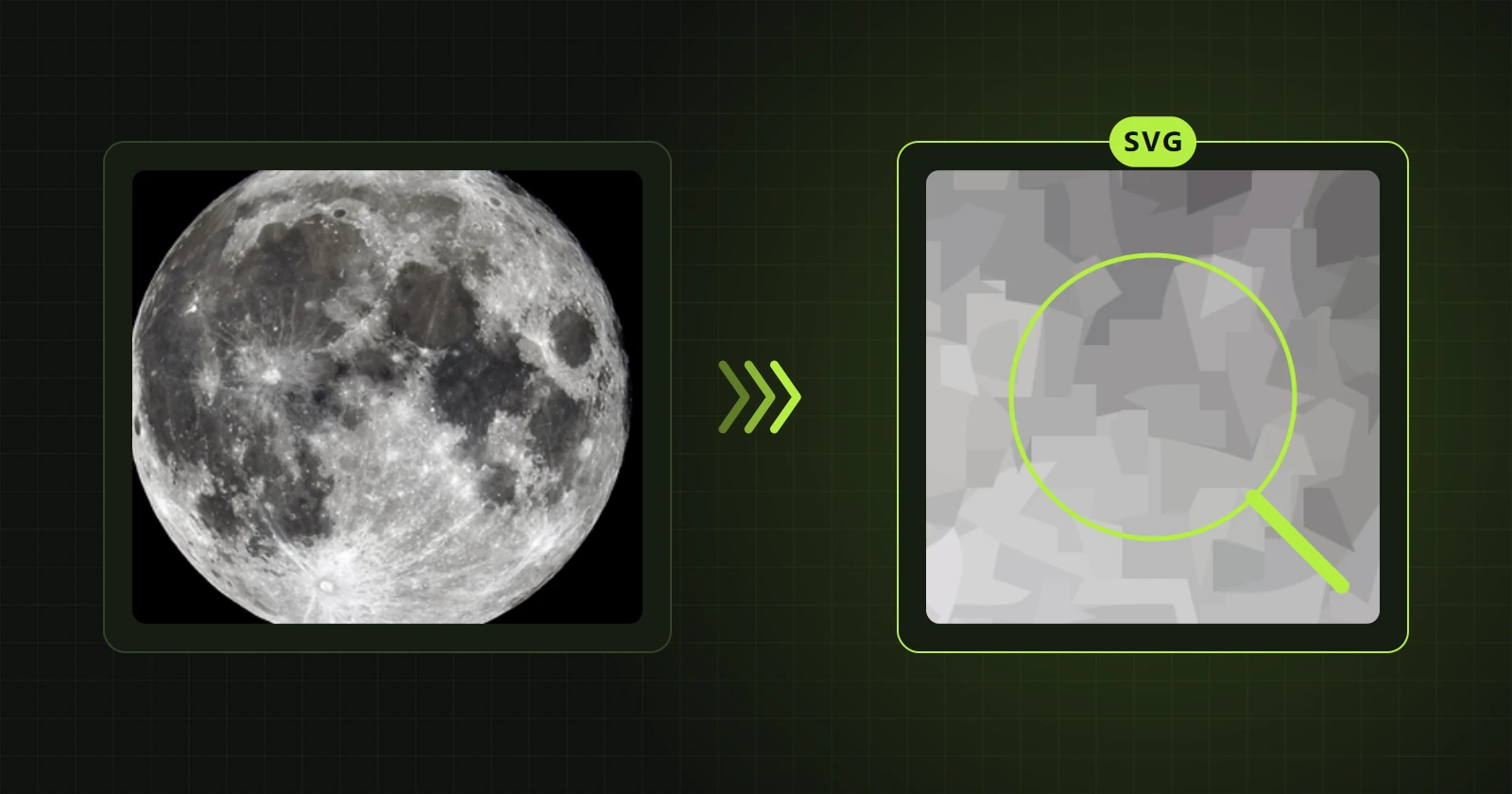
Open the file in a browser and enlarge it several times (Ctrl and plus). A real vector keeps sharp edges throughout. If you see blur or pixel squares, there is a raster picture inside.
Way 2: look inside
An SVG is a text file. Open it in Notepad and look for two things.
- A
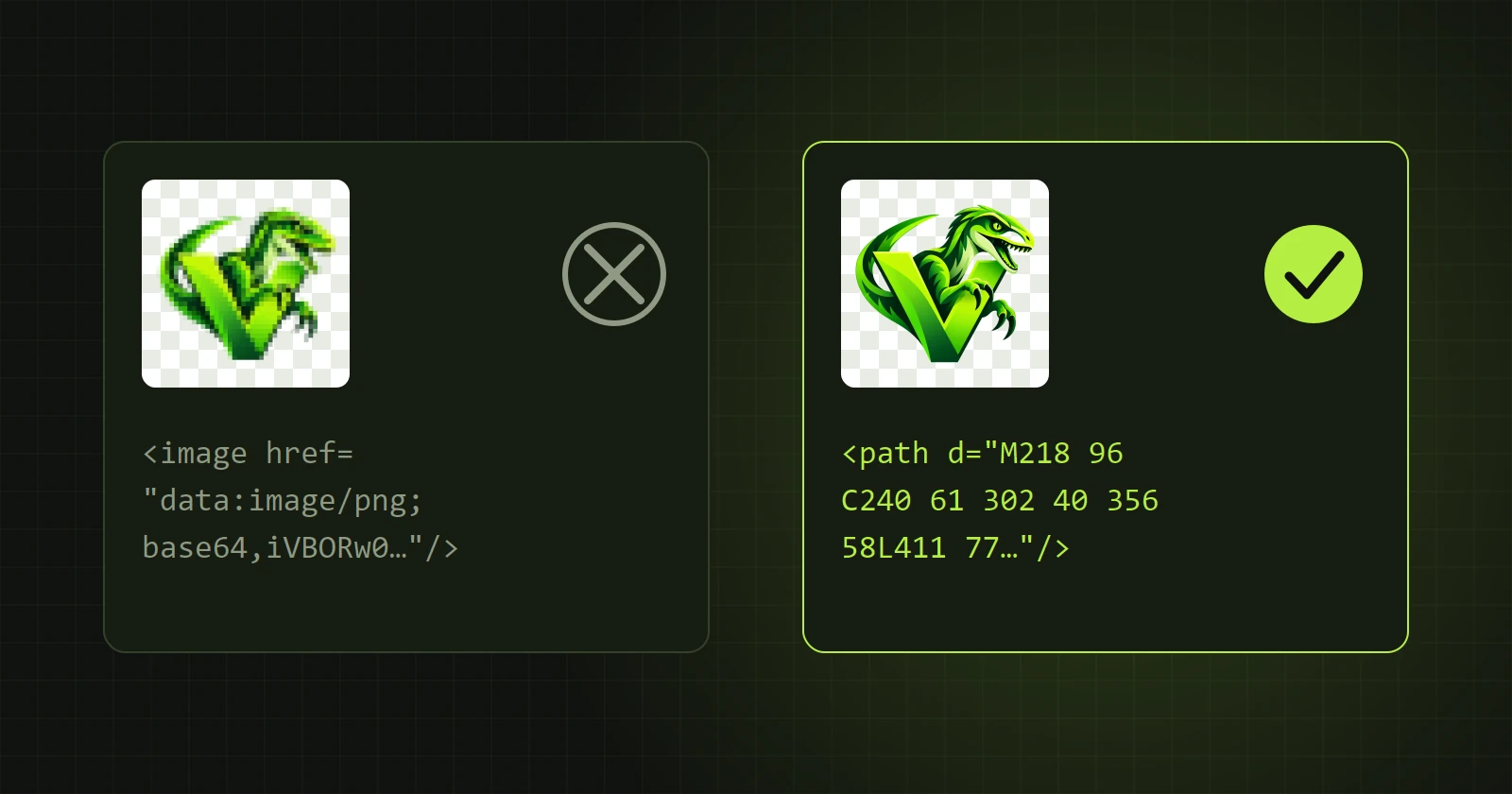
<pathtag with a long run of letters and numbers ind="…"is a vector path. That is what you want. - An
<imagetag withhref="data:image/png;base64,…"is a raster picture sewn into the file. If the file consists mostly of this, it is not a vector.
Mixed files exist too: a vector outline with a raster fill. Enlarged, the edge of the shape is then sharp and the inside is blurred.
Way 3: open it in a vector program
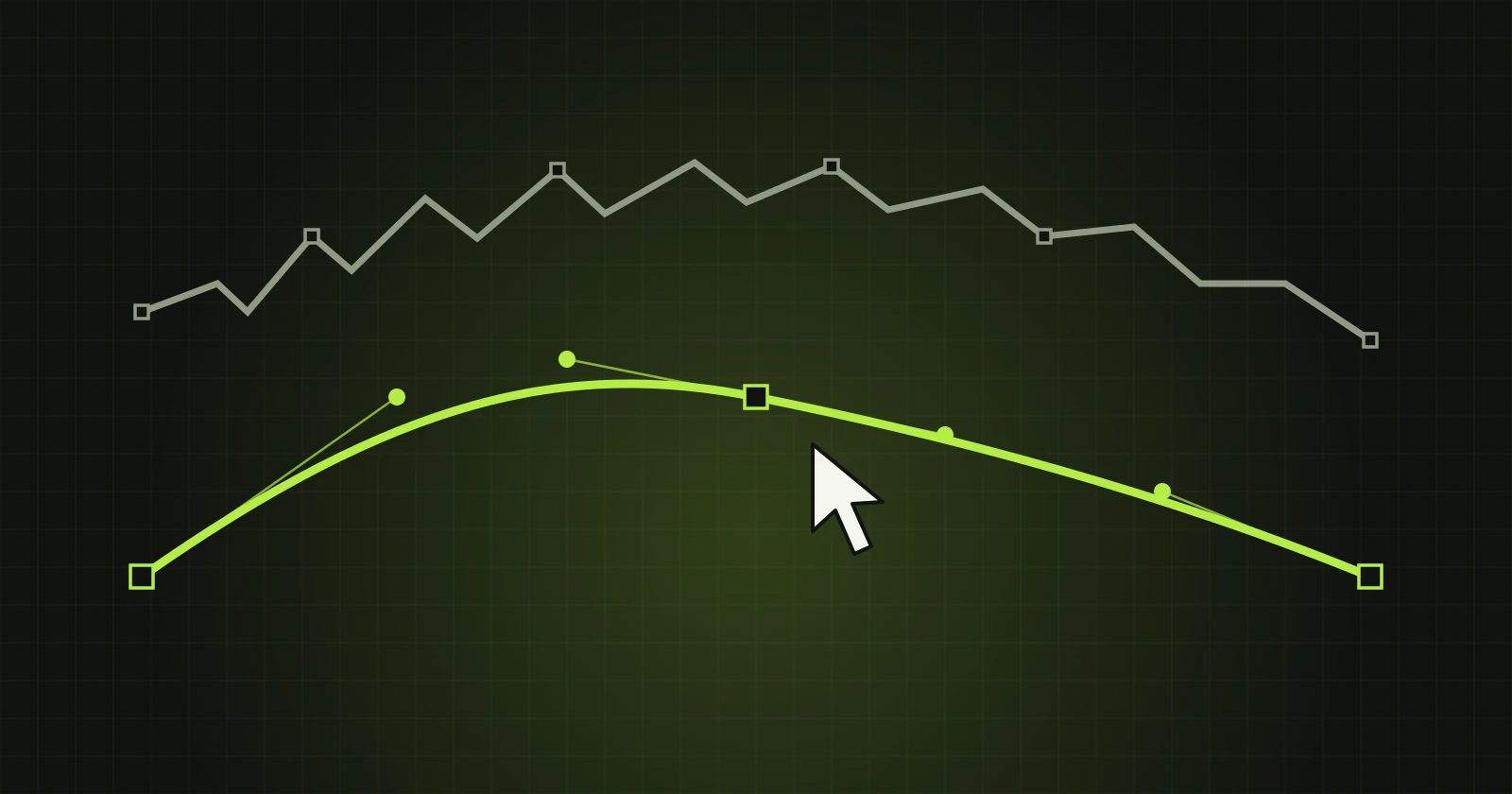
In Inkscape or Illustrator click an element with the node editing tool. A path shows points you can move. A raster picture is selected as one rectangle with no points.
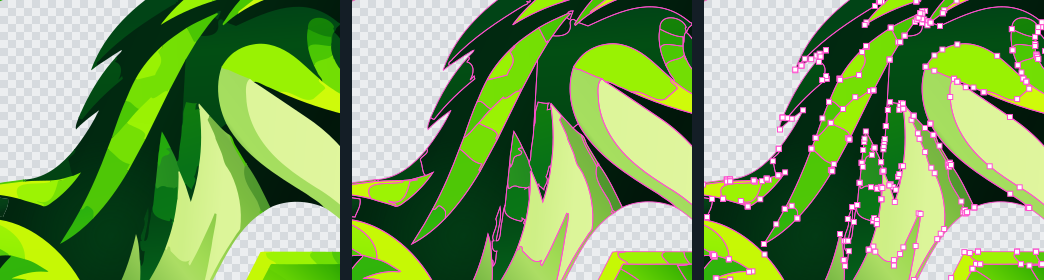
File size is a hint too
An SVG with an embedded picture weighs as much as that picture, or about a third more. A vector logo is usually tens to a few hundred kilobytes. Size alone proves nothing, since a complex vector illustration can also be large, but it is a quick clue.
What VectorRaptor does
Every vector file saved from the program (SVG, PDF, AI, EPS) contains paths only. The program does not paste the original image into the result. In the window you can switch on “Show paths” and “Show points” to see exactly what goes into the file. How to make such a file from a picture is covered in PNG and JPG to SVG on Windows.