PNG and JPG to SVG on Windows, without uploading the file
You open the image in a program on your own computer, click one button and get an SVG in which every shape is a separate path. The file is not sent anywhere.
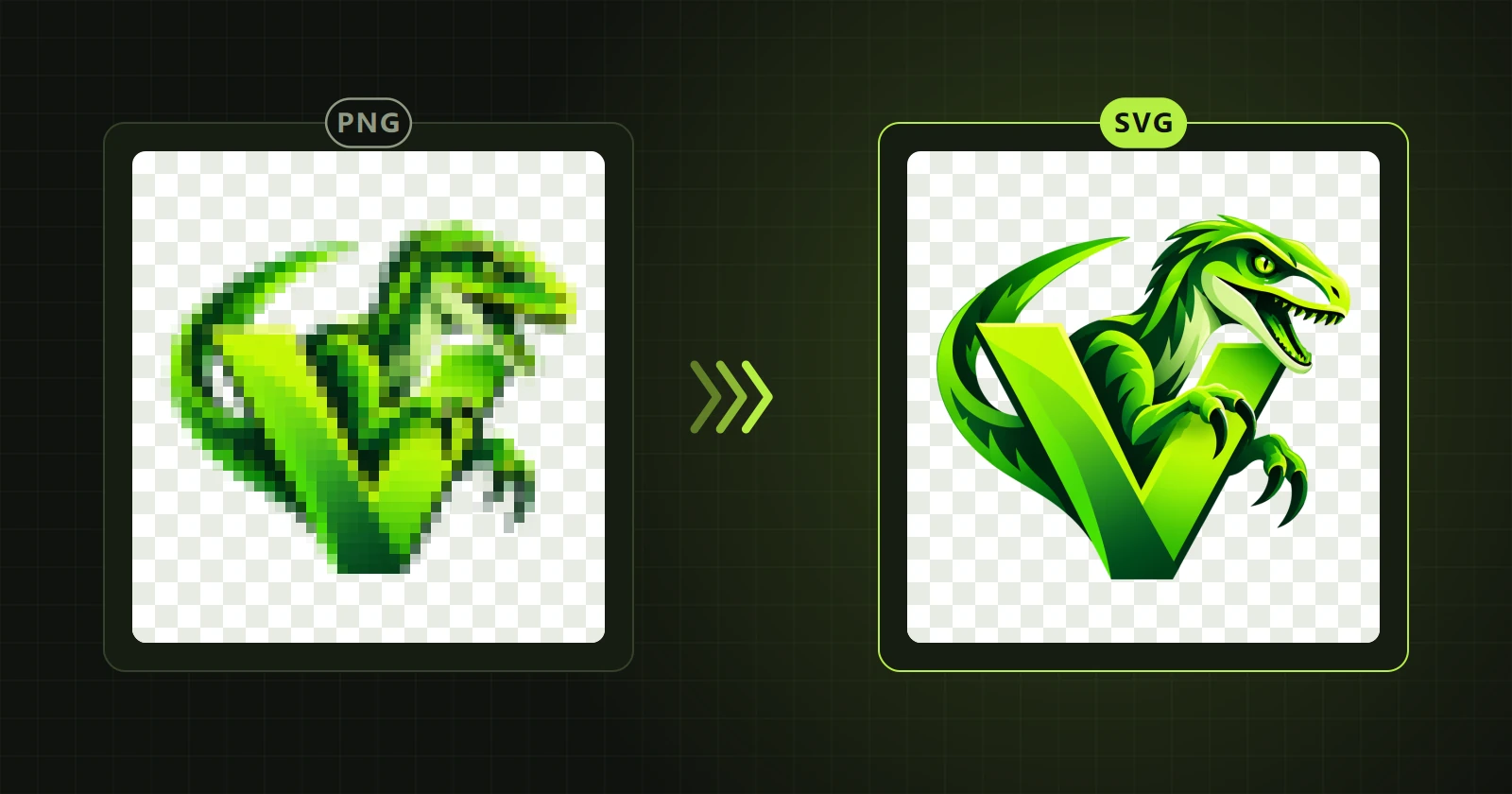
In short: in VectorRaptor open the image (PNG, JPG, WebP, BMP or TIFF), click “Convert to vectors”, check the result beside the original and choose Export → SVG. The conversion runs on your computer.
What you need
- A computer with Windows 10 or 11 (64-bit). An NVIDIA graphics card speeds things up but is not required.
- An image in PNG, JPG, WebP, BMP or TIFF. You can also paste one from the clipboard.
- VectorRaptor from Microsoft Store.
Step by step
- Open the image. Use “Open image”, “Paste” (Ctrl+V) or drop the file on the window. At this point the program only shows a preview; nothing is computed yet.
- Keep the starting settings. For logos and illustrations they are chosen to keep gradients: type “Artwork / logo”, unlimited colours, objects with gradients.
- Click “Convert to vectors”. Progress is shown above the tool bar. The logo in the example below (1024 × 1024 px) took about 40 seconds on our computer.
- Compare and export. The “Original / vector” view shows both pictures side by side. When you are happy with the result, click “Export” and choose SVG.
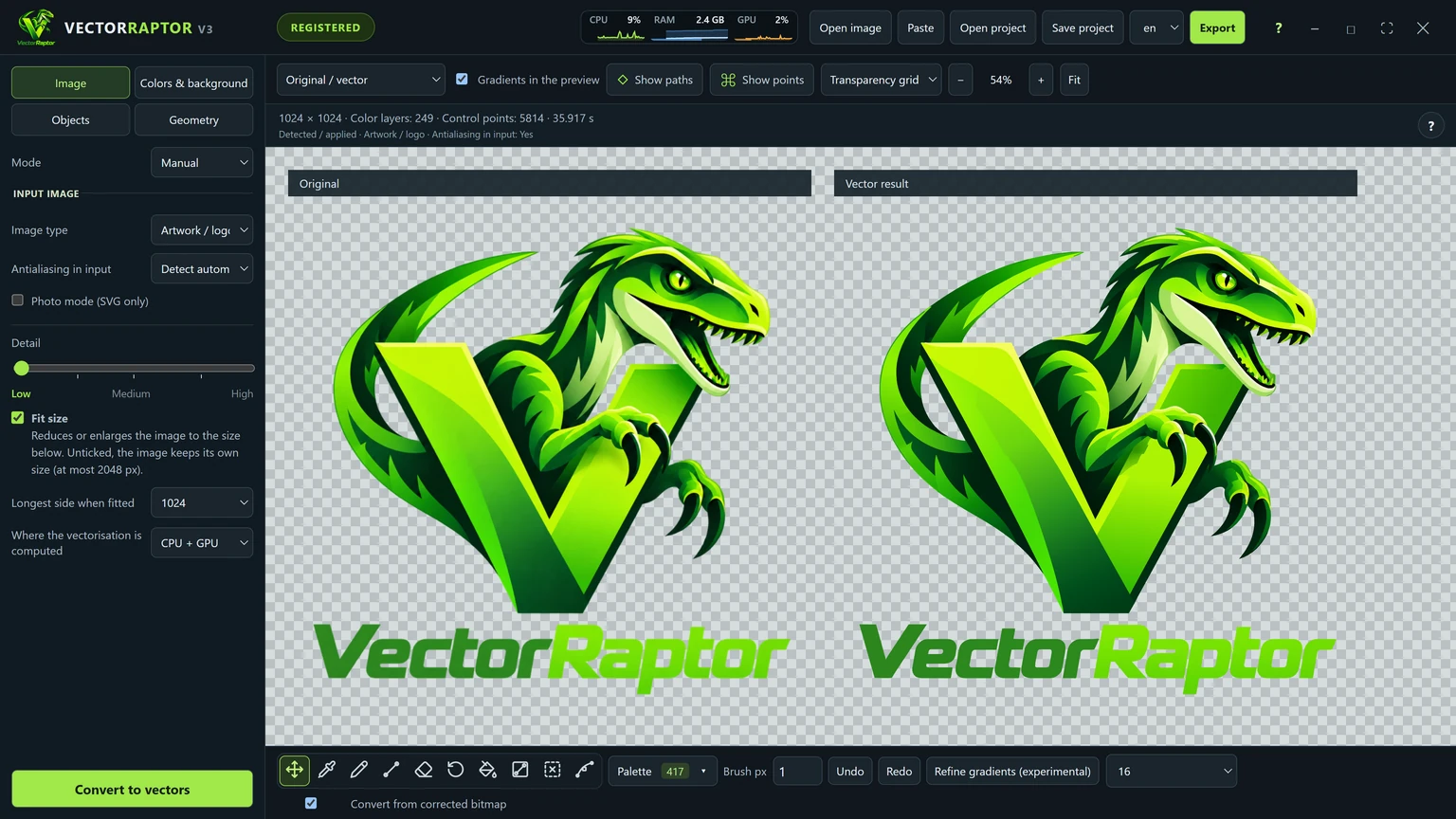
What is in the file
The SVG contains paths, not a picture pasted inside. That difference matters: such a file can be enlarged without losing sharpness and edited shape by shape in Illustrator, Inkscape or Affinity. How to check this in any file is covered in SVG with paths or with an embedded image.
Why on the computer and not in the browser
Online converters need your file on someone else's server. With a client's logo before launch, or material under contract, that can be a problem. A desktop program computes everything locally and needs the internet only to check the licence. A wider comparison is in Desktop program or online converter.
Things to watch
- A very small image (200 px, say) gives a simplified result. With “Fit size” ticked the program enlarges it before converting, which helps small details.
- A photograph is a different case from a logo. Photos have their own mode, described in Photo to vector.
- Exporting and saving a project require a Pro licence. In the demo version you can inspect and correct the result but not save it.